See the Quickstart Tutorial here:
Score Setup
Creating a new Score
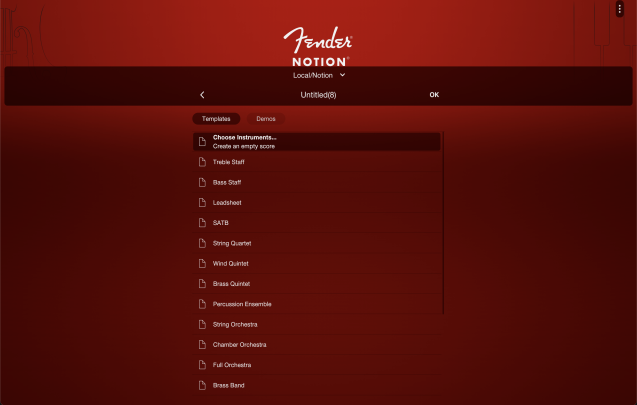
To create a new score, tap the ‘plus’ (+) icon on the Start Page.
You will then be prompted to enter a filename:
- You don’t need to enter anything here, you can just use “Untitled.”
- The initial filename set will also show as the Title in the score itself
- The Title can later be independently edited if needed by double tapping it
- Changing the Title does not change the filename (and vice versa, if you later change the filename, this won’t affect the Title)
Above the filename, is the location that the new file will be saved in. Tap the down arrow for more options:
- Select… opens the device file browser. You can then navigate to the location where you want to save the file. Depending on the platform, not all cloud locations will be available for a new score — but a score can be moved once created, and then opened in place from that cloud location
- Select Default selects the default location for Fender Notion scores on your platform
Choose Instruments… is selected by default — once you tap OK, this will then open the instrument picker. However, you can elect to use a template score...
Using a Template Score
- Hide the on-screen keyboard if it is still showing after entering your filename (if applicable) to see the whole Template list
- Select the Template you want
- Tap OK in the top right
- You can also add your own Templates to this list — Save, Export and Print Scores
Opening a Demo Score
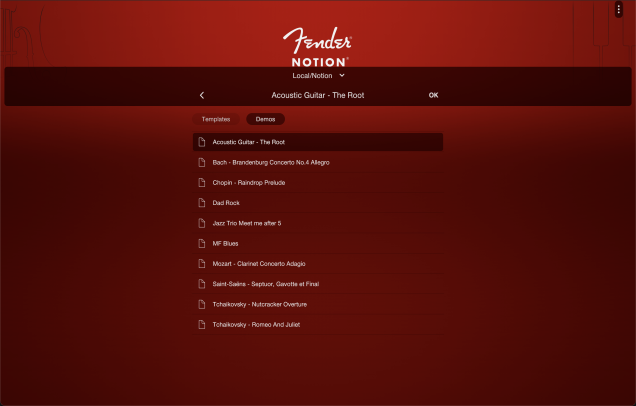
Once you’ve tapped the "plus" (+) icon on the Start Page, you’ll be able to see a "Demos" tab, alongside "Templates."
Tap to show a list of included demo scores - select one to open and start playing. If you make a change to the demo score, this will automatically create a copy in your default save folder and be added to the Recents List on the Start Page (the original demo score is not changed).
Add Instruments
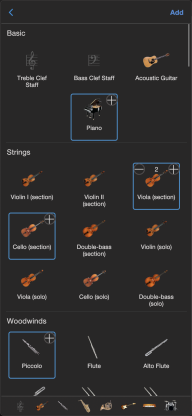
Once you’ve clicked OK and selected Choose Instruments, the score will open and Instrument picker will automatically open up
- Scroll up or down this list of instruments. You can also use the fixed row of instrument family shortcut icons at the bottom of this picker to jump to the right place
- Tap an instrument to select — tap again to deselect
- To select more than one of each instrument, tap the plus icon in the corner of the instrument.
- When you are done, tap Add in the top right corner
The selected instruments will be added to the score. The Score Setup window is now in view — here you can change various aspects of the instruments and the order (see below), but if everything looks good, tap OK in the top right corner, or tap away from the window to dismiss it.
Add and Edit Instruments
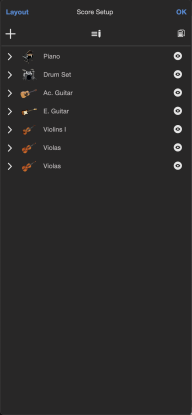
In the Score Setup window, if you wish to add more instruments, tap the + (plus) icon — this will open the instrument picker again.
Tap the Edit icon to remove instruments — tap the instrument(s) to select, then tap Delete. To change the score order of instruments, use the three-line icon on the right to grab and drag instruments into your desired order
On the right hand side of Score Setup, is a Score / Part toggle — this will allow you to switch to viewing either the full score or an individual part. When viewing a part, use the eye icon next to each instrument to change the part currently viewed. When viewing the Full Score, the eye icon is used to show/hide parts in the full score itself.
If you don’t have the sound sample pack installed for an instrument you have selected, a blue round Download icon will appear — tap to download the containing Soundset. Note you don’t need to have the sound downloaded / purchased to be able to write for that instrument, as Fender Notion will default to a piano sound if it’s not present.
Instrument Setup
In the Score Setup window, tap the arrow to the left of one of your chosen instruments to see more setup options. They include:
- Instrument - tap to change the instrument of the staff
- Name - change the full instrument name
- Short Name - change the abbreviated name
- Staff Type - select which type of staff to show for the instrument
- Standard - single 5-line staff
- Tablature - guitar tablature with a line for every instrument string and numbers instead of noteheads
- Standard+TAB - two linked staves allowing you to simultaneously see both standard and tablature notation for a single instrument
- Grand staff - two linked staves representing left and right hands
- Drumset - a five-line staff with percussion clef
- Single Line - a one-line staff
- Tab Options (only shows if a tablature option is selected above)
- Tab type - choose from a selection of instrument presets and tunings
- Tab strings - displays the tuning of the instrument, but can be overtyped for a custom tuning
- Circles in TAB - option to show a circle around whole or half notes
- Show Stems in TAB - option to hide rhythmic stems for tablature notes
- Voice Stem Mode - if there are multiple voices in a staff, this allows you to decide how the stems should be handled
- Separate Up/Down - the default treatment of every upper voice note points up and every lower voice note points down.
- Joined Stems - wherever the two voices share the same rhythm, join the two notes with a stem in the same direction. At points where there are rhythmic differences, return to default separate up/down treatment.
- Separate per Measure will treat the voices as a joined stem option, but whenever there is an exception anywhere in a measure, then the entire measure is treated as Separate up/down.
- Show Key Signature this will hide the key signature at the start of each system, and automatically add accidentals to notes where necessary. This is most commonly used for French Horns.
- Transposition (only shown if a pitched instrument is selected) - Fender Notion will automatically set this up for you when you select a transposing instrument from score setup. However you can also manually choose what note should sound and in what octave when a notated C is played. E.g. A French Horn in F playing a notated C, would sound F in the same octave lower. A Tenor Saxophone in Bb playing a notated C, would sound Bb one octave lower.
- Show Instrument Key (only shown if a pitched instrument is selected) will show/hide the displayed key of the instrument, e.g. Clarinet in Bb / Cl.1 in Bb
-
Show Chords - Fender Notion will automatically display existing chords from other instruments, when this option is selected. Use the Show/Hide tool to show chords only on selected measures.