See the Quickstart Tutorial here:
Installation and Activation
Installing Fender Notion From an App Store
To get Fender Notion on your device, follow these links or log in to your device’s respective app store:
- iOS Devices: Apple App Store
- macOS Devices: Apple Mac App Store
- Windows Devices: Microsoft Store
- Android Devices: Google Play Store or Samsung Galaxy Store
-
Linux: Download ARM64 installer or AMD64 installer
Once you've opened your device's app store, search for "Notion Music."
Look for the Fender Notion app (and its distinctive icon) in the search results, and then, tap "Get" or "Install."
To save space on your device, the initial app will download with just the Steinway piano sound — the rest of the sounds can be added/removed later as you wish (see below: Installing Sounds).
Updates
Updates to Fender Notion are handled via your respective App Store — go to your account or search again for Fender Notion within the app store to download an update. Alternatively, set your apps to automatically update whenever an update is available — this setting can be usually found in your app store. For Linux, check your version number against the current version shown in the release notes page.
Welcome Page
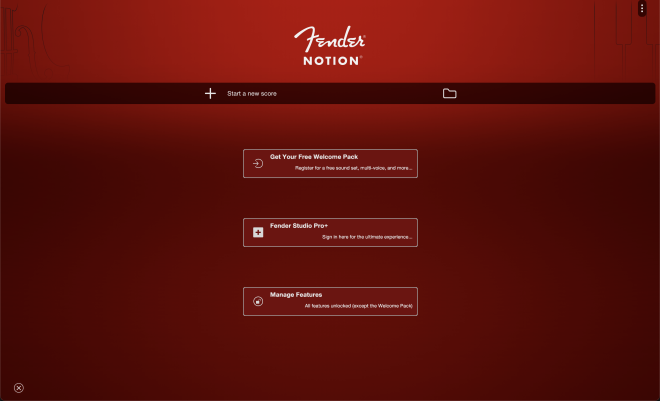
On first open, Fender Notion will display a Welcome Page. From here, you can quickly create your first score by hitting the plus button or try out one of the included demo scores. Or you take a moment to unlock all of Fender Notion’s optional features and sounds by purchasing the in-app purchase, or signing in with your Fender Studio Pro+ membership.
Installing Sounds
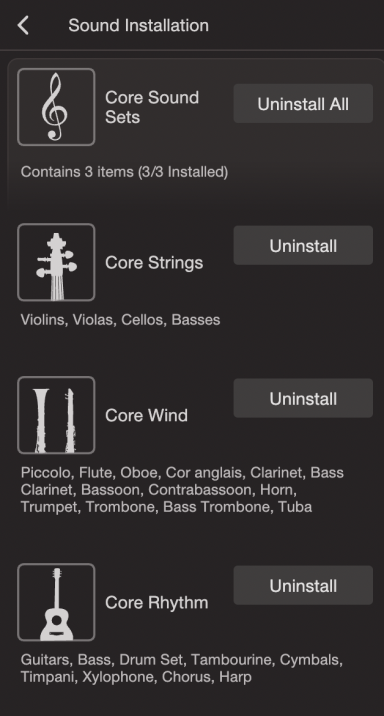
Fender Notion comes bundled with a core set of specially recorded sample instruments - to install them, navigate to the Application Menu>Sound Installation. You can either install the available Core sounds, or just the individual Core Soundsets that you want. You can also install the Soundsets from your Score Setup menu — just click the download icon. If you want to free up space on your device, you can also remove Soundsets from this menu.
To unlock the expansion sounds, you can either make the single in-app purchase from the link provided, or sign-in with your Fender Studio Pro+ membership (See below).
The Welcome Pack soundset is available as a reward once Fender Notion has been registered. There is no charge for registering Fender Notion (See below).
Welcome Pack
To receive the Welcome Pack (which includes an exclusive soundset and multi-voice input), you will need to register your app. There is no charge for doing so.
Click the button on the Welcome Page, or go to Application Menu>Account>Register. Then, sign-in with your Fender account, or click the link to create a free account if you don’t already have one.
Feature Bundle
To unlock optional features and content, you will need to either make the in-app purchase on each platform you use Fender Notion (e.g. Android, Windows, macOS, iOS), or sign in with your Fender Studio Pro+ Membership. For Linux, sign in with a valid Fender Studio Pro+ membership to unlock content and features. For Linux, sign in with a valid Fender Studio Pro+ membership to unlock content and features.
This purchase includes: handwriting recognition, layout controls, network transfer for device-to-device sharing of scores, all expansion Soundsets, advanced audio export formats, and exciting new features to arrive in the future!
Can I remove/delete my account?
Yes, you can download all your data and permanently delete your account. Please bear in mind that this will delete your account and any hardware or software registered product keys will be irretrievably deleted. Full instructions here.
Restore purchases (App Store purchases)
If you have made the optional in-app purchase and you can’t see your previously unlocked features or sounds, then you may need to refresh the purchase state of the app.
- First, make sure you are signed in to the device with the same account that you purchased with (this is the number 1 reason for this issue to happen!)
- Next, make sure you actually made the purchase on the platform you are currently using — note the in-app purchases are per platform (i.e. an in-app purchase made on Android will not carry over to Apple iOS).
- Finally, just tap "Restore Purchase" from: Application Menu >> Manage Features
Choosing your language
The language in which your device is set will generally dictate which language Fender Notion will display in. You may be able to override this at the app level, depending on the platform. Go to the Application Menu > Language to do so.